Review of UNIX commands
0. Before logging in to your PIC UNIX account via SSH Secure Shell, click on the SSH Secure Shell Client icon, go to the Edit menu,
then Settings, and finally you will see the following:
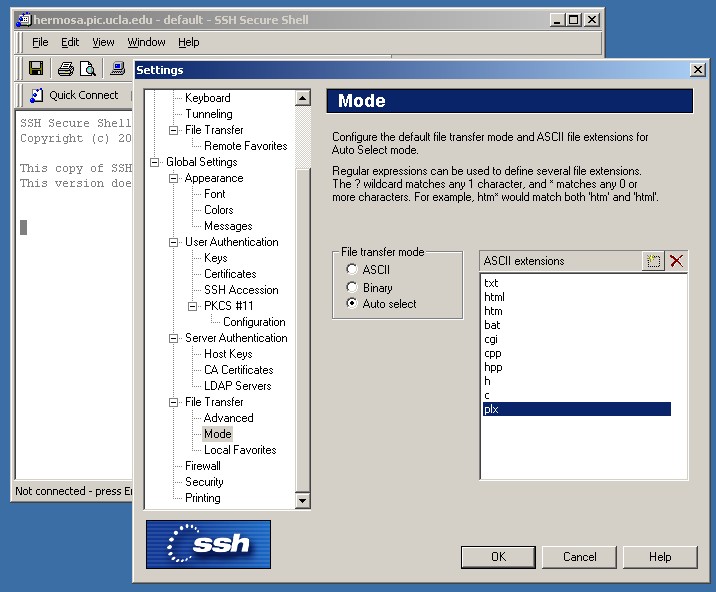
If not, click the square to the left of the red X and add the missing extensions so that your setup agrees with the picture.
Note: these settings may change unbenounced to you. So make sure they are configured properly before every time you transfer files in the future!
This prevents the complications arising from converting newline characters when transferring from Windows to UNIX and vice verse.
Thanks to Sourav Dutt for bringing this to our attention.
1. Logging in to your PIC UNIX account via SSH Secure Shell 
2. After a successful login you will see the UNIX command-line
prompt

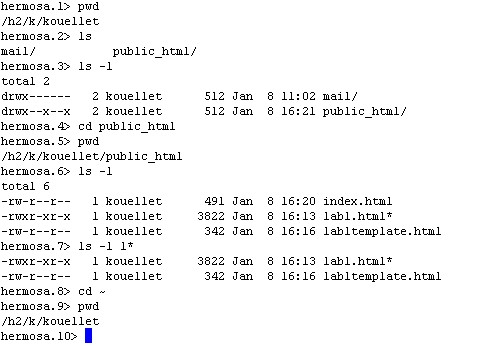
3. The pwd command displays the cuurent directory you are
in.
The ls command allows you to see the contents
of your directory. The -l option displays the file's details,
including permissions.
Note the format of the list:
For example, consider
drw-rwx--- 2 kouellet 1123
512 Jan 8 11:02 public_html
drw-rwx--- Means the name represents a
directory. (The first column is - for normal
files.) The user (you) has read and write permissions (but not execute).
Groups have read, write and executable permissions.
Others have no permissions.
The digit 2 shows the number of links
to the file. This is almost always 1.
The next field, kouellet, shows the
account name of the owner of the file.
1123 is the ID code of the group that owns
the file.
512 is the size of the file in bytes.
Feb 3 08:15 shows the time and date
when this file was last changed.
The name of the file comes last.
You can also just list particular files in that
directory using the * wildcard .
4. To change permissions on a file, group of files, or a directory, use
the chmod command:

5. To make a directory, use the mkdir command.
To remove a directory, use the rmdir command.

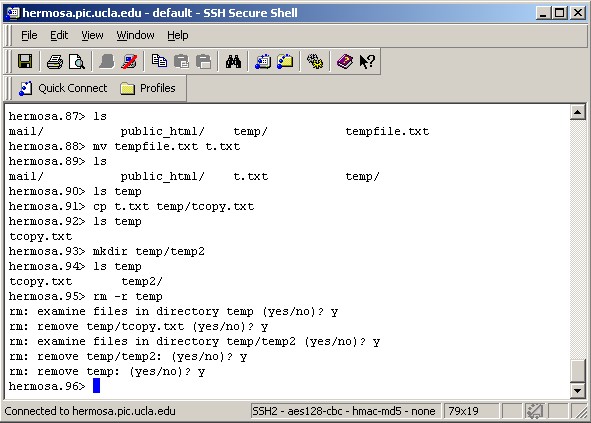
6. To copy a file, use cp.
To move a file, use mv.
To remove a file, use rm. Or to
recursively remove a directory and all its subdirectories, use rm -r.
7. To search for lines containing a phrase, use the grep command.
Use man grep to see all the options for grep or man (command) for any
UNIX command..
